





Knowledge Base
"Load Paper" / "Paper Empty" Print Error
ISSUE
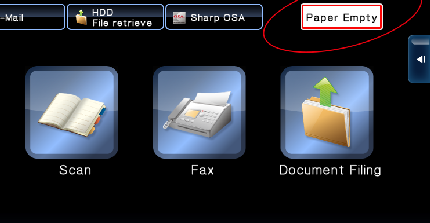
Nothing is printing, display on the photocopier is requesting paper be loaded even though you have paper in the machine.
REASON
A job that was sent to the printer is requesting a different size paper than what is currently programmed in the copier. This causes the print queue to back up.
RESOLUTION 1: Force Print
(May not be suitable for all documents, but suitable for most.)
01. Press [OK] on the load paper/paper empty message
02. Press the job on the list with the status of "PAPER EMPTY"
03. Press [Reset (or reselect) paper]
04. Select the tray/paper you wish to print from
05. Press [OK]
RESOLUTION 2: Fix Settings on Computer
First you must delete the faulty job from the copier job list. The job causing the issue will have the status "PAPER EMPTY", select the job and press [Delete]
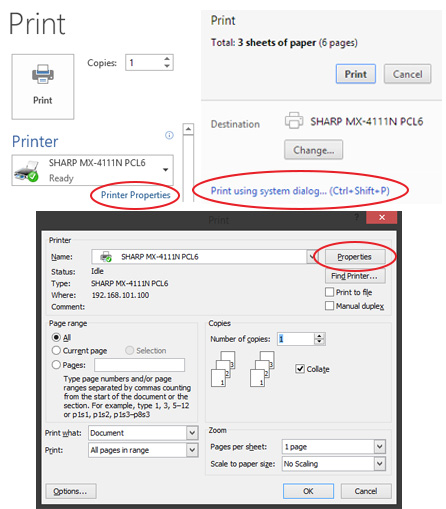
With your document open, you need to go to print and then access your printing preferences/printer properties, which looks something like - printer properties
Once open, click the PAPER tab and make sure the 3 settings match below
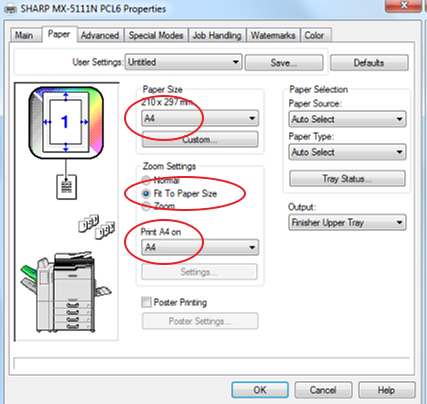
Press [OK] and [Print]
Print Queue is Stuck
ISSUE
You and your team have sent print jobs to the photocopier but it’s not printing. You can check the job status (Top left) and you may see print jobs sitting in the queue, as well as the “spool” queue, but the machine isn’t printing.
REASON
One of the print jobs has become corrupt and is holding the rest of the que up.
RESOLUTION
01. Power the photocopier off.
02. Ensure you go to every computer and open the print que on the computer.
03. Delete/Cancel all print jobs in the print queues on the computers.
04. Power on your photocopier.
05. Now print your documents.
The reason why you must delete the print jobs from your computers is because even if you power off the photocopier and turn it back on, that same (corrupt) data is still sending through from the computer, so it will likely not resolve the problem unless you follow the steps above.


