




Knowledge Base
Checking Toner Levels
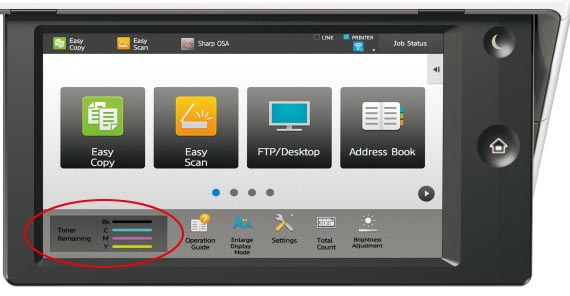
To check your toner level of the current Sharp range of photocopiers, the levels are conveniently displayed on the screen (pictured).
To see toner levels on any of the older Sharp machines, please click through below for instructions.
Method 1.
You can hold down the physical blue house button for a few seconds and this will display both toner levels and meter reading, otherwise:
Tap arrow circled below
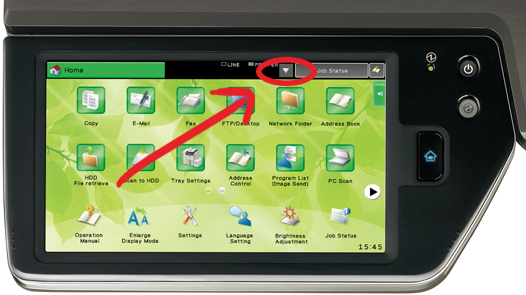
Tap [TONER REMAINING] tab, device will display current toner level chart.
Method 2.
You can hold down the Copy tab on top left of the touchscreen for a few seconds and this will display both toner levels and meter reading, otherwise:
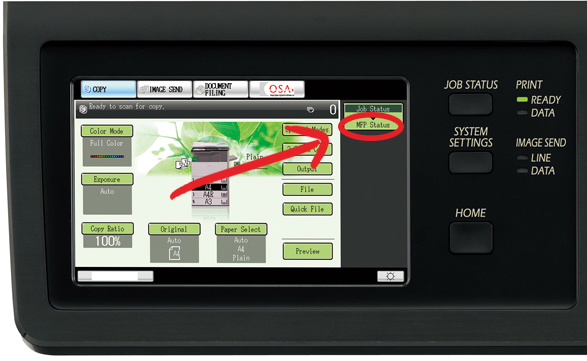
Tap [MFP STATUS] as circled below.
Tap [TONER REMAINING] tab, device will display current toner level chart.
Get a Sharp Meter Reading
Phoenix Meters (CR4 Series)
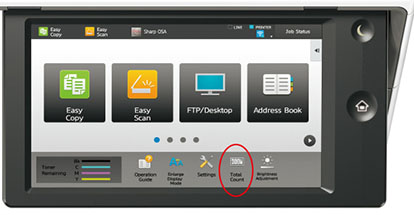
View your Meter Reading
01. Press the [TOTAL COUNT] key
Print your Meter Reading
01. Press [SETTINGS] button
02. [STATUS]
03. [TOTAL COUNT]
04. From this screen you can view or print your meter read.
Gemini Meters
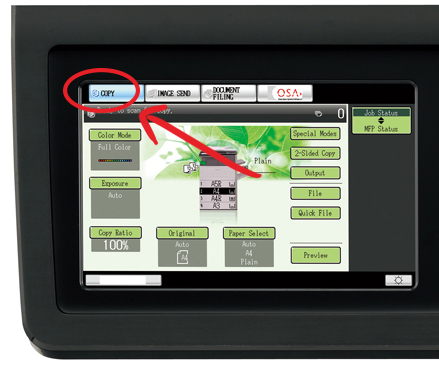
View your Meter Reading
01. Hold down the [COPY] key (Pictured)
Print your Meter Reading
01. Press [SYSTEM SETTINGS] button
02. [TOTAL COUNT]
03. [JOB COUNT]
04. From this screen you can view/print your meter read.
Virgo Meters
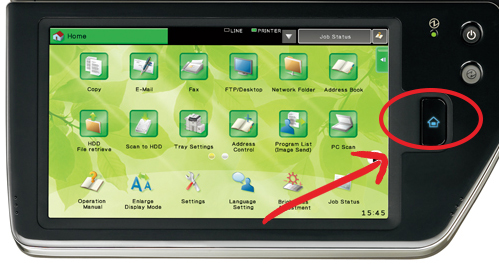
View your Meter Reading
01. Hold down the [COPY] key (Pictured)
Print your Meter Reading
01. Press [SETTINGS]
02. [SYSTEM SETTINGS]
03. [TOTAL COUNT]
04. From this screen you can view or print your meter read.
Replacing Waste Toner (Waste Collection)
01. Open the front cover.
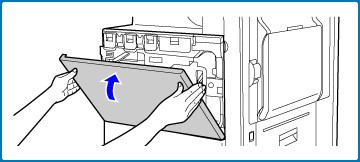
02. Press the waste toner box release button. (green)
The waste toner box will fall forward as shown at left. Wait until the box comes to a stop.
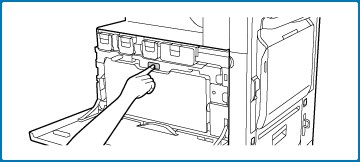
03. Remove the waste toner box.
Hold the waste toner box by both hands and lift it up slowly.
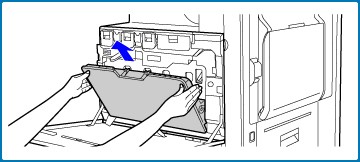
Place the waste toner box on a flat surface. Place a sheet of paper such as newspaper on the surface before placing the waste toner box. Do not point the holes down as used toner will spill out.
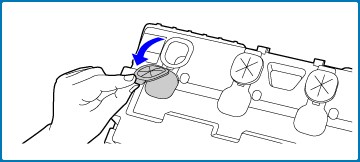
04. Remove the seals around the holes.
Grasp the edge of each seal and pull it out toward you. There are 4 seals. Remove all of the seals. Plug the holes. Grasp the edge of each black seal and insert it into a hole in the box to plug the hole.
05. Install a new waste toner box.
Insert the box from above at a slant. (In the direction opposite to the direction you removed it in.)
Push the waste toner box into the machine. Push the box in until it clicks into place.
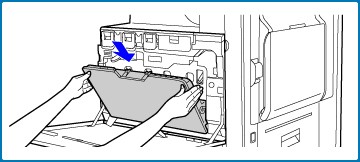
Close the front cover.
How to Print a Manual (CR4 Series)
01. From the Home Screen, press this small Arrow.
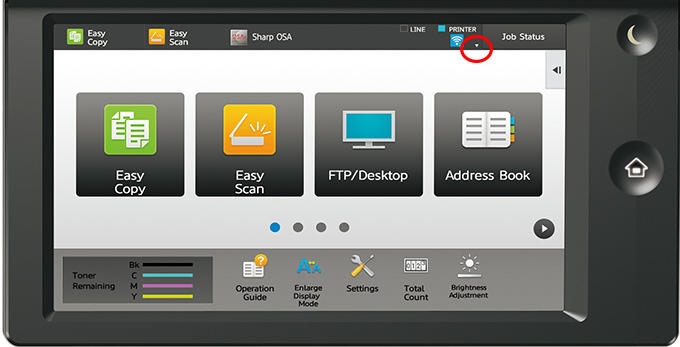
02. Tap the [Operation Guide] key.

01. Tap the [Downloading and printing manuals] key.
02. Tap the [Other manuals] key.
03. Tap the manual name.
04. Tap [Print].
The Print Settings screen appears. Select settings and tap the [Start] key to start printing.
Accessing Copier Webpage
Before you begin, you will require the IP address of your Sharp photocopier. If you don't know it, see instructions how to Find your Photocopiers IP Address
1. Start a Web browser on a computer that is connected to the same network as the machine and enter the IP address of the machine into the URL section. The Web page will appear.
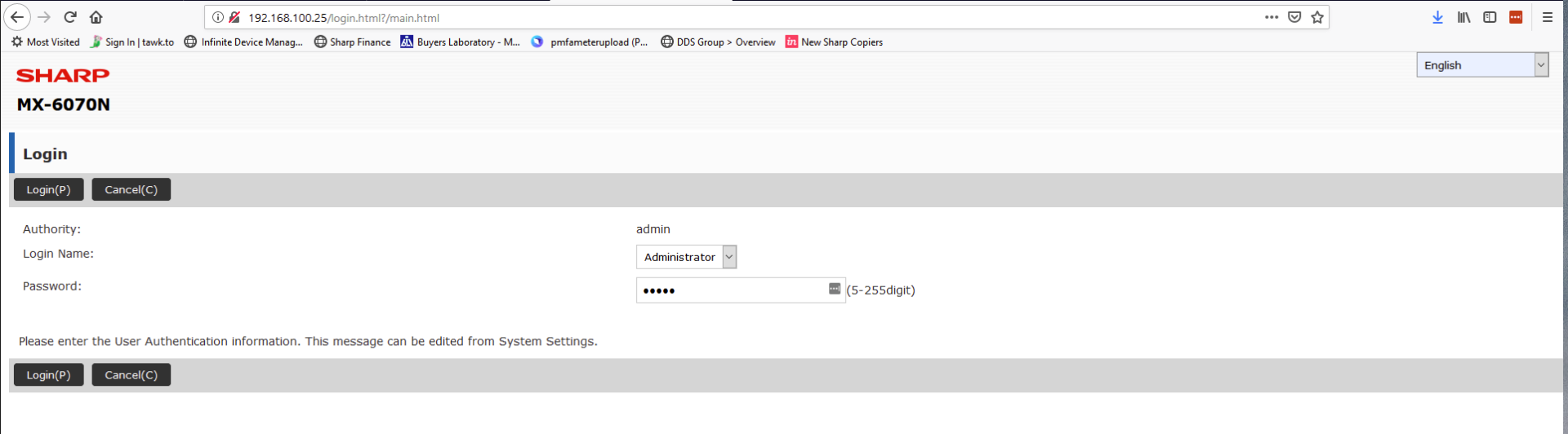
2. The machine settings may require that user authentication is performed in order to open the Web page. Your password is most likely: admin
Cancel Job or Change Job Priority
01. Check the Job Status
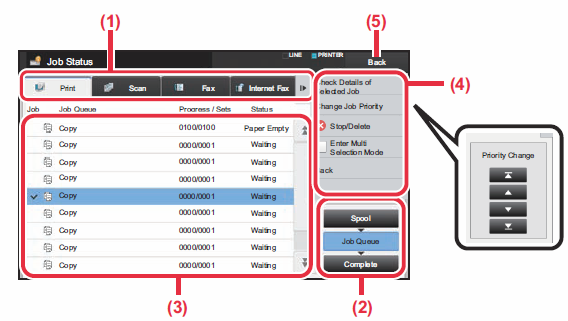
Tap the tab of the mode you want to check. (See fig. 1) Check copy jobs and print jobs on the [Print] tab.
02. Tap the [Job Queue].
(See fig 2.)
03. Check the jobs in the list.
If you want to cancel a particular job or change it's priority, select the job. (See fig 3.)
(1) Tap [Change Job Priority] and tap a Change Priority key.
OR
(2) Tap [Stop/Delete].