




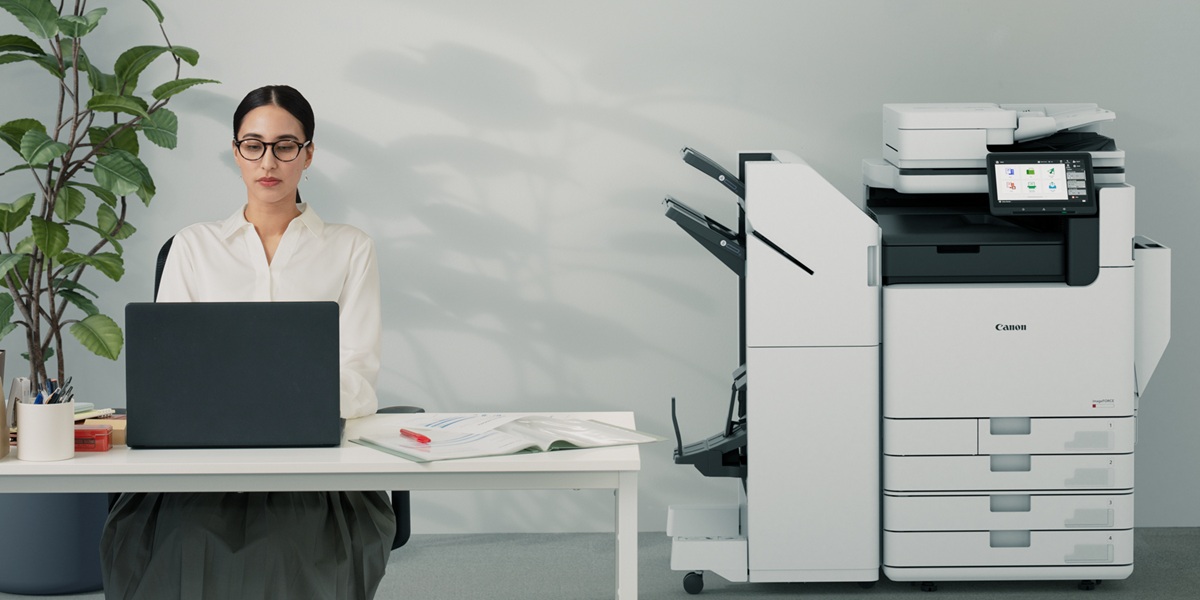
Whether you’re working from home or in a massive company, you likely already know that printers are the lifeblood of every office. And in today’s fast-paced workplace, WiFi connected office printers have shifted from being a convenient extra to an absolute necessity. With teams relying on mobile devices, flexible workstations, and shared digital workflows, the ability to print wirelessly is now central to maintaining productivity and reducing day-to-day frustrations.
Many users are all too familiar with the classic pain points: tangled cables, limited desk space, printers that only work when physically plugged in, or the constant need to transfer files to a specific computer just to print. WiFi-enabled printers eliminate these issues by seamlessly connecting to your existing home or office network. Often referred to simply as “wireless printers,” these devices join your local WiFi network and allow multiple devices, such smartphones, tablets, laptops, and desktops, to send print jobs at the same time. This means no more waiting for someone else to finish using the printer, no more plugging and unplugging cables, and no more crowding around one workstation just to print a document.
Because they operate over WiFi, these printers can be placed almost anywhere within network range, giving you far greater freedom in organising your space—whether that’s a compact home office or a busy workplace with multiple users.
And of course, like any technology, wi-fi enabled printers can come with their own issues. But DDS is here to help you through them! Let’s get started…
Why Setting Up Your Printer on WiFi Matters
Wireless printers offer a level of convenience that traditional models can’t match, allowing you to print from any device within your Wi-Fi range and dramatically cutting down on waiting times. With no cables required, they eliminate workstation clutter and the hassle of tangled wires, helping users stay focused without worrying about disrupting connections.
Once added to a device, a wireless printer remains available for future use, making it easy for multiple users on the same network to print from phones, tablets, laptops, or desktops without any extra setup. Many models also support remote features such as cloud printing, enabling users to send documents even when they’re not physically near the printer, while technologies like Wi-Fi Direct allow a direct connection between device and printer for even faster access.
How to Connect Your Printer to WiFi: A Step-by-Step Guide
First, you’ll need your Wi-Fi network name (SSID) and password handy before you get started. If you’ve forgotten the password, check the label on the back or underside of your router—it may be listed as the network security key, WPA key, or WPA/WPA2 passphrase. Once you have those details, make sure your printer and computer are positioned close enough to the router to maintain a strong, reliable connection.
Alright - onward! Please note that the following steps may vary slightly depending on your version of macOS or Windows.
How to Set Up a Printer on Windows
- Open the Start menu.
- Go to Settings > Devices > Printers & Scanners.
- Find your printer in the list; if it doesn’t appear, select Add a Printer or Scanner.
- Choose your printer when it shows up
- Click Add Device, entering a password if the system prompts you.
How to Set Up a Printer on Mac
- Click the Apple menu in the top-left corner of your screen.
- Open System Preferences and select Print & Scan.
- If your printer isn’t listed, click the + button and choose it from the Available Devices.
- Select the correct printer drivers in the Use field, then click Add.
How to Fix Printer WiFi Connection Issues
Quick Fix Checklist
- Restart the Printer: Sometimes the simplest step is the most effective. Power the printer off, wait a few seconds, and turn it back on to reset its wireless connection.
- Restart the Router: A quick reboot of your router can refresh your network and clear temporary glitches that may be interrupting the printer’s connection
- Check Your Wi-Fi Signal Strength: Make sure the printer is within a strong, stable Wi-Fi range. Weak or inconsistent signals can prevent the printer from staying connected.
- Confirm Airplane Mode is Turned Off: On laptops, tablets, and smartphones, Airplane Mode disables wireless connectivity entirely. Double-check that it’s switched off so your device can communicate with the printer.
Printer-Specific Fixes
- Forget the Network and Reconnect: Remove the saved Wi-Fi network from your printer’s settings, then reconnect by entering the password again. This helps clear out incorrect or outdated connection data.
- Run a Network Diagnostic Test: Most modern printers include a built-in network or wireless test report. Running it can highlight issues such as weak signals, incorrect settings, or failed connections.
- Install the Latest Firmware: Check your printer’s support page or companion app for firmware updates. Keeping the firmware current ensures better performance and improved Wi-Fi compatibility.
- Reset the Network Settings: If problems persist, restore the printer’s network settings to factory default. This removes any conflicting configurations and allows you to set up the Wi-Fi connection from scratch.
Router & Network Fixes
- Check for MAC Filtering: If your router has MAC address filtering turned on, your printer may be blocked from connecting. Make sure the printer’s MAC address is added to the allowed list or temporarily disable the feature to test the connection.
- Reduce Network Congestion: Too many devices on the same Wi-Fi network can slow things down. Disconnect unused devices or pause high-bandwidth activities—like streaming or large downloads—to give your printer a clearer, more stable connection.
- Change the Wi-Fi Channel: If your network is experiencing interference from nearby routers, switching to a less crowded channel can help. Adjust the channel settings in your router’s admin panel to improve signal strength and stability.
- Reboot the Modem/Router: A simple restart of your modem or router can refresh the connection and resolve temporary glitches. Power it off for 10–15 seconds, then switch it back on and try reconnecting your printer.
When Your Printer Says It’s “Offline”
Sometimes a printer may be connected to Wi-Fi but still appear as “offline” when you try to print. This is usually caused by software or driver issues rather than the Wi-Fi network itself. Here’s how to sort it out…
Fix a Printer Offline Error in Windows
- Open Settings → Devices → Printers & Scanners.
- Select your printer and choose Open queue. Make sure Use printer offline is unchecked.
- Press Windows + R, type services.msc, locate Print Spooler, and click Restart.
- If the problem persists, remove the printer from Windows and re-add it, ensuring you download the latest drivers from the manufacturer’s website.
- Tip: Many offline errors occur after a router change. Double-check that your printer and PC are connected to the same network.
Fix a Printer Offline Error on Mac
- Open System Preferences → Printers & Scanners.
- Select your printer and click the minus (–) button to remove it.
- Restart your Mac, then click the plus (+) button to re-add the printer.
- If problems continue, right-click your printer in the list, select Reset Printing System, and set up the printer from scratch.
Tip: Macs may sometimes retain an old IP address. Re-adding the printer ensures the system recognises its current Wi-Fi connection.
Advanced Troubleshooting for Persistent Wireless Printer Problems
- Assign a Static IP: Giving your printer a fixed IP address can prevent connection drops caused by changing network addresses.
- Enable IPv4 Only: Limiting your printer to IPv4 can improve compatibility with certain routers and devices.
- Reduce DHCP Lease Time: Shortening the lease time on your router helps the printer renew its IP more reliably, reducing connectivity issues.
- Reinstall Printer Drivers: Removing and reinstalling the latest drivers ensures software conflicts or outdated files don’t block printing.
- Factory Reset the Printer: Restoring the printer to its default settings can resolve persistent network or configuration problems, allowing you to set up Wi-Fi from scratch.
When to Call the Experts
Most Wi-Fi connection issues can be resolved by following the steps outlined above, but occasionally printers require extra attention—particularly if the problem is hardware-related or involves complex network settings. That’s where DDS can help. Combining extensive experience with deep expertise, our team consists of dedicated professionals focused on providing practical solutions that help your business succeed. Call us today to keep your printing running smoothly.
Conclusion
Setting up your Wi-Fi printer correctly ensures faster, more reliable printing across all your devices, reducing delays, eliminating cable clutter, and keeping your workspace running smoothly. By following the simple steps outlined above, you can avoid common connection issues and get the most out of your wireless setup. For added convenience, consider bookmarking this guide so you can quickly revisit it whenever you need to reconnect or troubleshoot.
For professional printing solutions, visit DDS to explore our full range of wireless and multifunction printers, expert setup support, and ongoing service options. Whether you’re upgrading your home office or improving workplace productivity, DDS can help you choose the right device and keep it performing at its best. Get in touch with our team today to find the ideal printer for your needs.


