




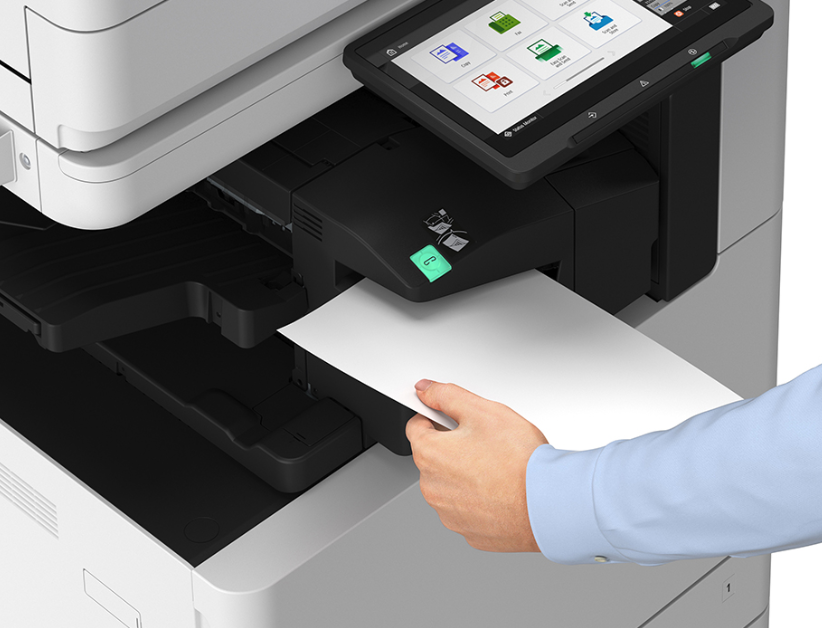
In our modern world, printers are essential tools, providing a vital service for work, school, and personal projects. Now with that said, let’s be honest; if you have a printer, then you’re inevitably going to have printer problems. It’s not a matter of quality; even high performance printers are not immune to printer issues. But there is some good news; while there are of course instances where you will need to consult professional help to solve the issue, there are many, many more cases where you’ll be able to fix the problem yourself with a little printer troubleshooting. So before you call in the tech support, have a quick scroll through this easy, breezy guide to see if you can't sort out the issue yourself!
The Top 10 Common Printer Problems (and How to Fix Them)
Printers are an essential part of daily work, and a breakdown in the middle of a project can cause immediate delays. However, many printer problems can be resolved with some basic DIY knowledge. To minimise downtime and get you back up and running quickly, we’ve put together a list of 10 common printer issues along with their solutions. By following the tips we’ve provided below, you can keep your printer operating smoothly and avoid unnecessary setbacks.
1. Paper Jam
Paper jams are one of the most frequent printer issues, often leading to frustrating and time-consuming delays. They occur when sheets of paper become stuck in the rollers or feeding mechanism. Common causes include mismatched paper size in the selected tray, mishandling when loading paper, dust or dirt on rollers, uneven paper edges, incorrect paper settings, or roller gear pressure issues. Many users make the problem worse by pulling out jammed sheets too quickly, which can leave small pieces trapped inside the printer and cause further damage.
Quick Fix: To prevent paper jams, always use high-quality paper that meets the printer manufacturer’s specifications. Handle and load paper correctly, watch tray indicators for paper levels and feed limits, and keep the printer clean by checking corners where dust can accumulate. Regular cleaning and maintenance will help reduce the risk of jams and avoid unnecessary troubleshooting later.
2. Printer Not Printing
Are you seeing error messages on the control panel, or does it feel like your print job has disappeared into the ether? Sometimes, even with two-way communication between the printer and driver, you may receive warnings or alerts indicating an issue before you even check the print tray, only to find nothing has been printed. These situations can be frustrating, especially if you’ve accidentally sent multiple copies to the wrong device or location.
Quick Fix: First, verify that you’ve selected the correct print settings before sending the job. Pay attention to any warnings from the printer driver, as they often identify the problem and suggest troubleshooting steps. If the issue persists, a simple restart can help: turn the printer off, wait a few minutes, then restart both the printer and your software application. This often clears temporary errors and gets the printer running smoothly again.
3. Printer Showing “Offline”
Few things are more frustrating than needing to print urgently only to find the printer showing as offline. This can happen for several reasons, ranging from simple connection issues to more complex hardware or software problems. Some common causes include disconnected cables, router malfunctions, or low ink levels. On the software side, interrupted connections, incorrect driver settings, or missing updates can also cause a printer to appear offline.
Quick Fix: Start by checking all cables and connections between the printer and computer to ensure they are secure. If the hardware connections are fine, review your device settings to confirm that the printer is correctly set up and recognised. Make sure required ports are open, firewall permissions are granted, and install any pending software or driver updates. With careful troubleshooting, most offline errors can be fixed quickly and easily.
4. Faded or Streaky Prints
It’s not uncommon for a printer to produce streaked, smudged, or otherwise poor-quality prints. These issues can stem from a range of causes, including incorrect calibration, outdated drivers, damaged or unsuitable paper, or incompatible printer settings. In some cases, low-quality printers themselves may also contribute to unsatisfactory results.
Quick Fix: Start by ensuring that you’re using the correct type of paper for your printer model, as paper that absorbs too much ink or has the wrong texture can affect print quality. Check that the area around your printer is well-ventilated and free from dust or small particles that may interfere with its performance. If streaks persist, clean up any potential ink leaks or blockages within the printer tubes, and confirm whether the ink cartridges need replacing. Finally, adjust your printer settings to match the paper and print job requirements. With these steps, you should be able to significantly improve output quality and avoid streaks or inconsistencies.
5. Software Integration and Compatibility Issues
Print jobs may fail or produce poor-quality output when ink cartridges are empty or running low. Low ink can result in faded prints, streaks, or incomplete pages, disrupting workflow and potentially wasting paper.
Quick Fix: Regularly monitor ink levels and replace cartridges before they run out completely. Always use cartridges recommended for your printer model, preferably from reputable suppliers, to ensure consistent quality. Keeping spare cartridges on hand and following proper installation procedures can help avoid downtime and maintain uninterrupted printing.
6. Printing is Expensive
The cost of frequent toner cartridge replacement can certainly add up quickly; especially if too many pages have been printed unnecessarily, or if low-quality or incompatible cartridges have been used. Using lower-priced third-party ink can lead to clogged print nozzles and poor print quality, resulting in more frequent orders. Inconsistent printing practices among shattered printer users may also contribute to wasted resources.
Quick Fix: Before purchasing another set of toner cartridges, evaluate whether most documents can be printed in draft quality or if only select pages actually need printing. Consider using duplex or two-sided printing to reduce paper use. Ensure that ink cartridges are compatible with your device and purchased from a reputable vendor to avoid performance issues. Standardising printing practices across employees can save both ink and paper.
7. The Ink Cartridges Are Empty Or Low
Printers may fail to operate correctly when there are software integration or compatibility problems. This can happen if printer drivers, operating systems, or third-party applications are not fully compatible, leading to errors, failed print jobs, or reduced functionality.
Quick Fix: Ensure that all printer drivers, software applications, and operating systems are up to date and compatible with each other. Check the manufacturer’s website for the latest updates and patches. If using third-party software, verify its compatibility with your printer model. Proper configuration and regular updates can prevent software conflicts and maintain smooth printing operations.
8. Slow Wi-Fi Printing
If your printer performs well when connected via cable or USB, but prints slowly over a wireless connection, the issue is often not the printer itself but how the data is being transferred. Wireless printing can be affected by distance from the router, network congestion, or outdated router capabilities. Slow wireless performance can be especially frustrating if the printer is nearing the end of its expected lifespan.
Quick Fix: Start by moving the printer closer to the router, if possible, to improve signal strength. Ensure your router has up-to-date firmware, and offers both 2.4GHz and 5GHz bands. Sometimes switching to a wired connection temporarily and then back to wireless can resolve data transfer issues. If these steps do not improve performance, or if your printer is aging, consider a service contract or contacting an expert familiar with your machine.
9. Printer Driver Problem
Printers can encounter issues when drivers become incompatible with hardware or software. Manufacturers release new drivers to keep pace with evolving technology, and installing the wrong or outdated driver can result in reduced print quality or prevent the printer from functioning altogether.
Quick Fix: To prevent driver-related issues, ensure your printer always has the latest driver version installed. Regularly check your system for updates so that any new drivers can be applied promptly, keeping your printer operating smoothly and producing optimal print quality. With proper setup and ongoing maintenance, compatibility problems and driver errors can be effectively avoided.
10 Printer Won’t Scan Anymore
If your printer suddenly stops scanning, the issue is often caused by corrupted or malfunctioning scanner software. In some cases, the problem may also stem from a hardware fault that prevents the scanner from functioning correctly.
Quick Fix: Start by reinstalling the printer’s software package to restore proper scanning functionality. If this does not resolve the issue, consult the troubleshooting section of the user manual or visit the manufacturer’s website to locate guidance specific to your printer model. Should the problem persist, it may indicate a hardware defect that requires professional repair or replacement
When to Call a Professional
While many printer issues can be resolved with basic troubleshooting, there are scenarios where professional assistance is necessary. Persistent mechanical problems, such as repeated paper jams or roller malfunctions, may indicate underlying wear or damage that requires expert attention. Internal hardware failures, including broken gears, faulty motors, or damaged scanning components, also fall outside typical DIY repair capabilities. Additionally, complex error codes that cannot be cleared through standard software resets or settings adjustments often signal deeper issues that a trained technician should diagnose. In these cases, you should contact a print professional to ensure proper repair, prevent further damage, and help maintain reliable printer performance.
The Importance of Timely Professional Intervention
Contacting a professional service technician when minor troubleshooting fails is important for several reasons. A trained technician can prevent further damage by correctly diagnosing and repairing issues, avoiding mistakes that could worsen the problem. Professional intervention also minimises downtime, ensuring that your printer is back in operation quickly and workflow disruptions are kept to a minimum. Regular expert maintenance can extend the equipment’s lifespan and maintain consistent, high-quality print output. Furthermore, addressing problems properly from the start is often more cost-efficient than repeated trial-and-error attempts or premature replacement of the printer.
Conclusion
Regular maintenance and adherence to proper usage practices prevent recurring problems, while simple DIY troubleshooting tips can save both time and money. By combining proactive care with smart troubleshooting, you can enjoy reliable performance and cost-efficient printing every day. But, should you need professional help, the friendly DDS team is only ever a phone call or a click of the button away; should you need us, you can contact us here. We’ll get your printer sorted out as quickly as possible. If it is indeed time to upgrade, you can browse our wide range of products here. And should you decide it’s time to try a different approach, using a Managed Print Service (MPS) can save time, reduce frustration, and help maintain efficient printing operations. The choice is yours!


